 Silence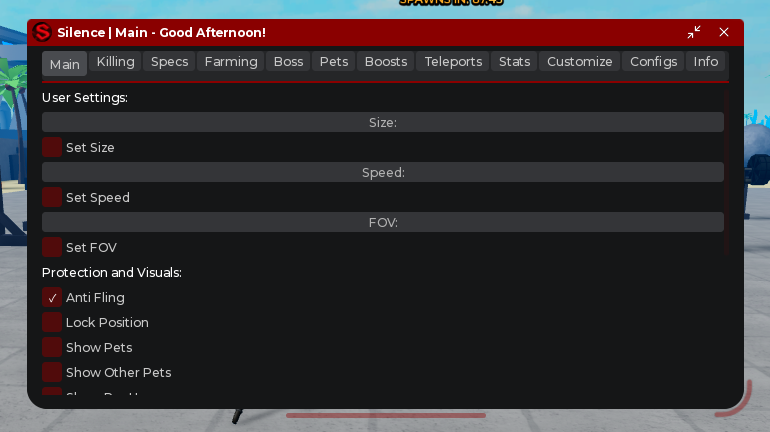
Elerium library
Quick start
- Load the library and create a window
- Add a tab with labels, buttons, or switches
- Put your script logic inside each
function
Use this example to get started:
local base = "https://raw.githubusercontent.com/silencedevs/SilenceScripts/refs/heads/main/libraries/eleriumv2/"
local library = loadstring(game:HttpGet(base .. "eleriumv2.luau"))()

local window = library:AddWindow("My script", {
    main_color = Color3.fromRGB(138, 0, 0),
    min_size = Vector2.new(500, 560),
    can_resize = true,
})

local tabs = {
    main = window:AddTab("Main"),
    info = window:AddTab("Info"),
}

tabs.main:AddHeading("My features")
tabs.main:AddLabel("Welcome!")

tabs.main:AddButton("Click me", function()
    -- Put your action here
end)

tabs.main:AddSwitch("Enable feature", function(enabled)
    -- enabled is true when on and false when off
end)

tabs.main:AddSlider("Speed", function(value)
    -- The value is applied when you release the slider
end, {min = 0, max = 100})

tabs.info:AddLabel("My first UI")
tabs.main:Show()
AddHeading() creates a heading with a default size of 16px
AddLabel() creates a regular label with a default size of 14px
Use \n to add more lines:
local label = tabs.main:AddLabel("Hello\nWorld")
label.Text = "You can change the text later"
Add Customize and Configs
Load the optional modules right after the library, before creating the window:
library:Use(loadstring(game:HttpGet(base .. "modules/Customize.luau"))())
library:Use(loadstring(game:HttpGet(base .. "modules/ConfigManager.luau"))())
Remove info from the first example
Add the following at the end, after creating all your controls:
tabs.customize = window:AddCustomizeTab()
local configManager
tabs.configs, configManager = window:AddConfigTab({
    Folder = "Silence/Configs/MyScript",
})
tabs.info = window:AddTab("Info")
tabs.info:AddLabel("My first UI")

configManager:LoadStartup()
tabs.main:Show()
Also move tabs.info:AddLabel(...) and tabs.main:Show() from the first example to the end
The tab order is Main → Customize → Configs → Info
Use a separate config folder for each script
The Configs tab lets you save profiles and choose a startup profile
Customize saves your appearance settings automatically
The sections below explain the API in more detail
Optional module tabs
local base = "https://raw.githubusercontent.com/silencedevs/SilenceScripts/refs/heads/main/libraries/eleriumv2/"
local library = loadstring(game:HttpGet(base .. "eleriumv2.luau"))()
library:Use(loadstring(game:HttpGet(base .. "modules/Customize.luau"))())
library:Use(loadstring(game:HttpGet(base .. "modules/ConfigManager.luau"))())

local window = library:AddWindow("My script", {
    main_color = Color3.fromRGB(138, 0, 0),
    min_size = Vector2.new(500, 560),
    can_resize = true,
})
local main = window:AddTab("Main")
local customize = window:AddCustomizeTab()
local configs, manager = window:AddConfigTab({Folder = "Silence/Configs/MyScript"})
local info = window:AddTab("Info")

main:AddHeading("Section")
main:AddLabel("A regular label")
local enabled = main:AddSwitch("Enabled", function(state) end)
enabled:SetConfigKey("Main.Enabled")

manager:LoadStartup()
Load startup profiles after creating all script controls
If you add the config tab after all controls, you can use {AutoLoad = true} to load the startup profile right away
Both module methods accept Title to set a custom tab name
The Muscle Legends scripts end with Customize → Configs → Info
Their profiles use separate Main and Farming folders under Silence/Configs/MuscleLegends
Configs
Use the Configs tab to create, save, load, refresh, or delete profiles and choose or clear a startup profile
Profiles save switches, sliders, dropdowns, text inputs, colors, keybinds, and appearance settings
Other values load before switches, so switches use the saved settings when they turn on
Controls inside module tabs and displayed stats are not saved
Default control keys use the tab, control type, original label, and position among matching controls
Controls that return a data object also provide:
GetValue()to read the valueSetValue(value)to change the valueSetConfigKey("stable.key")to give the control a fixed config key
Use RegisterConfig for your own state, such as a custom list of selected items:
window:RegisterConfig("SelectedItems", function()
    return selectedItems
end, function(value)
    selectedItems = value
    updateSelectionLabel()
end)
Supported values include JSON values, Color3, Font and KeyCode enums, and tables containing these types
Use tab:SetConfigIgnored(true) to skip automatic config saving for a tab
Manager methods:
Save(name)Load(name)Delete(name)Refresh()SetAutoload(nameOrNil)GetAutoload()LoadAutoload()LoadStartup()
LoadStartup() catches errors and shows them in the Configs tab
Customize
Change the main color, background color, text color, font, and Window Size
Click or tap a color swatch to open the color picker
Each font option uses its own font as a preview
Window Size scales everything together, including text, controls, spacing, and resize handles
The first run starts at 100% and saves that setting
Later runs use your saved Window Size
The slider ranges from 50% to 150% on every device
Mobile uses a fixed 0.7 multiplier, so mobile 100% matches the previous mobile 70% size
Desktop scaling stays unchanged
The slider applies when you release it and saves with your other appearance settings
Font and text color settings do not change the title or header icons
Settings save automatically to Silence/Customize/<PlaceId>/appearance.json and load when you add Customize
Use {Folder = "..."} to change the folder
Any pending changes save when you close or run the script again
Startup profiles keep your saved appearance settings, while loading a profile manually can change and save them
Theme methods:
window:GetTheme()window:SetTheme({...})window:ResetTheme()
Theme keys: MainColor, BackgroundColor, TextColor, Font, HeadingSize, LabelSize, ControlSize, Spacing, WindowScale
WindowScale uses a factor from 0.5 to 1.5, so window:SetTheme({WindowScale = 1.2}) sets 120%
Reset appearance restores 100%
The individual size and spacing keys remain available for existing scripts
Labels and inputs
AddHeading(text)uses 16px by defaultAddLabel(text)uses 14px by defaultAddLabel("Hello\nWorld")has the same spacing as two separate labels- Change labels with
.Text,.Font,.TextSize, and.TextColor3 - Sliders work with mouse and touch
- Slider values update while dragging, but callbacks run when you release by default
- Cancelling a drag keeps the last applied value
- Slider options:
min,max,step,readonly,commitOnRelease(default true) Set(value)applies a slider value right awayIsDragging()tells you if the slider is being dragged- Color pickers work with mouse and touch and provide
Set(Color3),SetOpen(bool), andIsOpen()
Windows and assets
Drag the title or empty tab content to move the window
The window can move above the top edge while part of its body stays reachable
Windows fit their starting size to the screen so the bottom-right resize grip is visible
When content overflows, dragging along the scroll direction scrolls it and dragging across that direction moves the window
You can also use the mouse wheel or scrollbar
Window sizes use logical pixels before scaling
The minimum window height is 300px and the minimum width fits the full title and header controls
min_size sets the starting size
Click the icon or minimize button to collapse or restore the window with an animation
Close removes the window and stops work managed by its runtime
Window methods:
window:SetSize(Vector2)window:FitToScreen()fits the window and keeps the bottom-right resize grip visiblewindow:GetScale()returns the current scalewindow:SetTitle(string)window:Minimize(bool)window:Destroy()
Resize handles and scrollbars use the main color and highlight while in use
PNG icons are cached under Silence/LibraryAssets. Asset credits live in the library repository.